How do I map my P: drive using ExpanDrive for Windows?
Although technically not required, it is recommended that you install and run the University's VPN client.
Downloading ExpanDrive
If you do not already have ExpanDrive installed in your machine, you will want to download and install the program. To do so, point your browser to https://www.eos.ncsu.edu/software/downloads/. If you already have the program installed, you can skip to the next section.
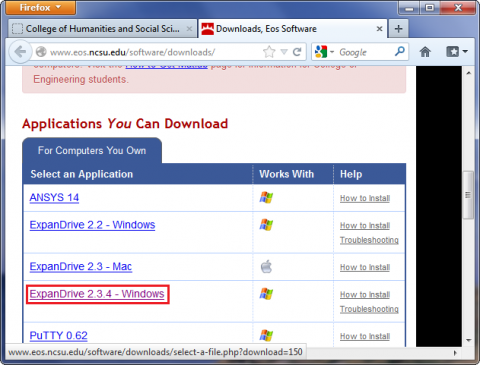
Fig. 1
Scroll halfway down the page, and under Applications You Can Download, click on ExpanDrive - Windows (Fig. 1).
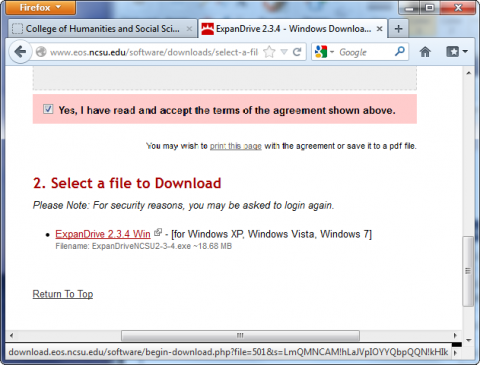
Fig. 2
When the download page appears, select Yes, I have read and accept the terms of the agreement shown above. Then, click on ExpanDrive Win to download the program (Fig. 2).
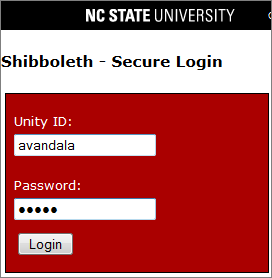
Fig. 3
If you haven't already done so, you will be prompted to enter your Unity ID and password (Fig. 3). When you have entered both, click Login.
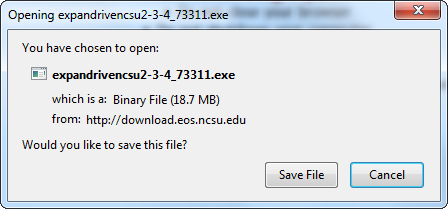
Fig. 4
A dialog box will appear (Fig. 4), prompting you to save the .exe file. Click on Save File.
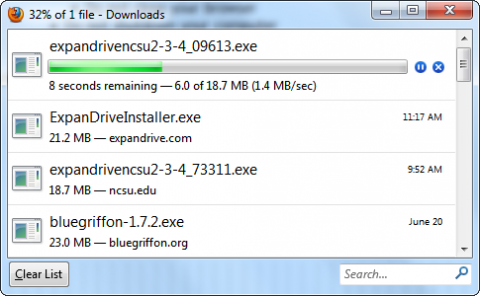
Fig. 5
The .exe file will then begin downloading. You can view its progress in your browser's "Downloads" window (Fig. 5).
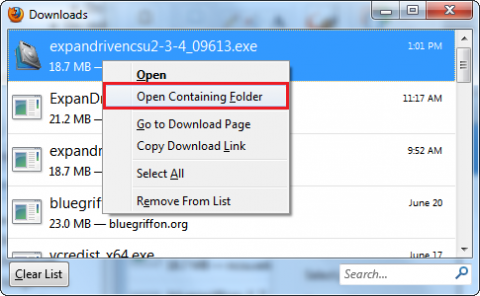
Fig. 6
When the download is complete, right-click on the file in the "Downloads" window (Fig. 6), and select Open Containing Folder.
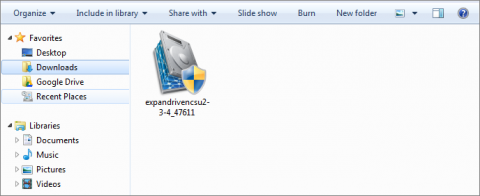
Fig. 7
The installer's icon will then appear in its own explorer window (Fig. 7). Double-click on the file to begin the installation process.
Installing ExpanDrive
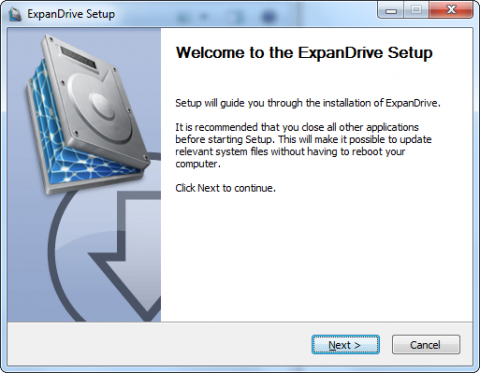
Fig. 8
To install ExpanDrive, after you have double-clicked on the downloaded installation file, the setup program will begin. Click on the Next button to continue (Fig. 8).
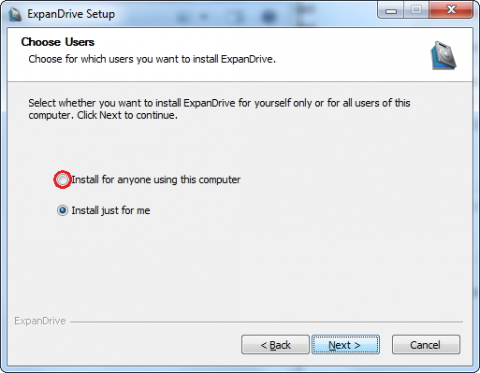
Fig. 9
Click on the radio button beside Install for anyone using this computer (Fig. 9).
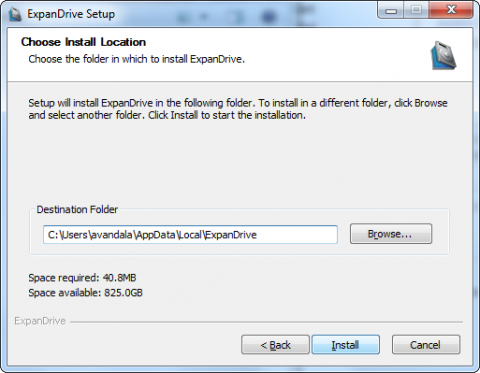
Fig. 10
Click the Install button to begin the installation of the program (Fig 10).
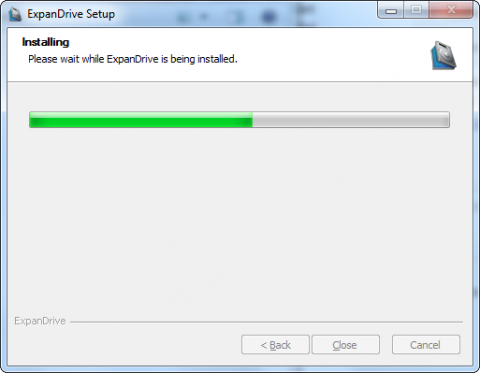
Fig. 11
The program will then begin installing (Fig. 11).
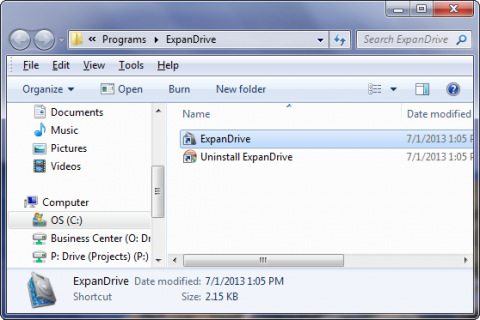
Fig. 12
Once the installation is complete, the program's shortcut will appear in a new window. After the program has successfully installed, you can then configure it to map your P: drive. Click on ExpanDrive to open the program.
Mapping the P: Drive
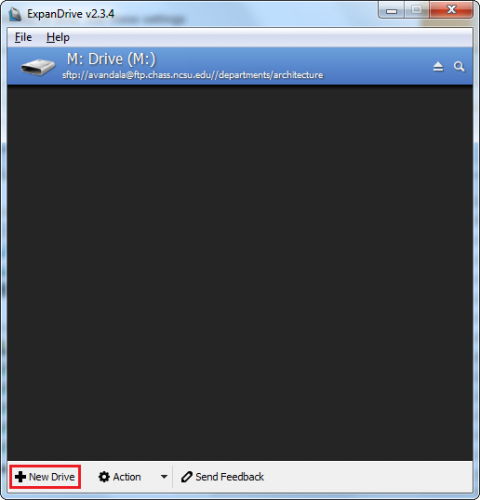
Fig. 13
If you have just installed ExpanDrive, the program will go to the configuration window immediately upon opening (see Fig. 14 below). Otherwise, click on New Drive in the main ExpanDrive window (Fig. 13 above).
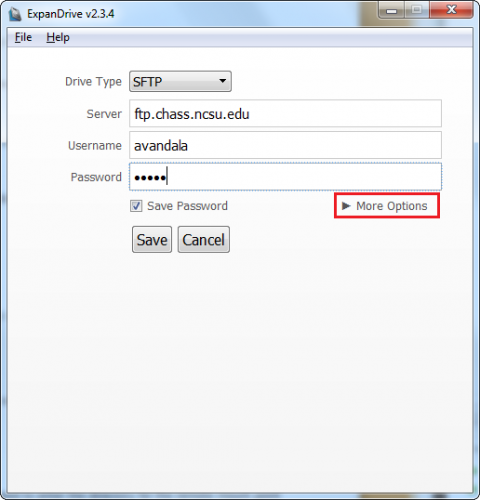
Fig. 14
Select SFTP for the Drive Type, and type in ftp.chass.ncsu.edu for the Server. After entering in your Unity ID and Password, click on More Options (Fig. 14).
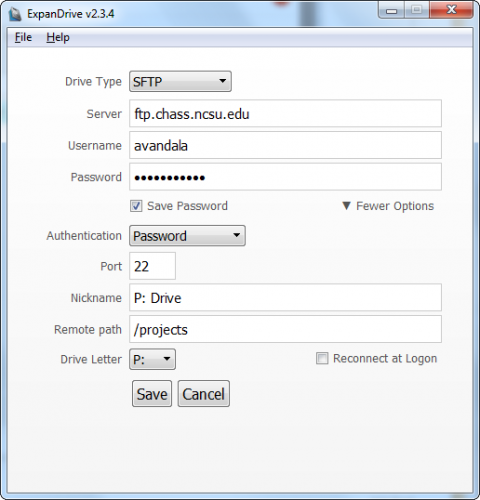
Fig. 15
Then, under Authentication, the drop-down menu should show Password selected. Under Port, type in 22, and although technically you could type in anything, for our purposes we will use P: Drive for the Nickname.
In the Remote path field, simply type in /projects, setting the Drive Letter to P: using the drop-down menu.
As above, if you are using a laptop, it is best to leave the Reconnect at Logon option unchecked.
When finished, click Save.
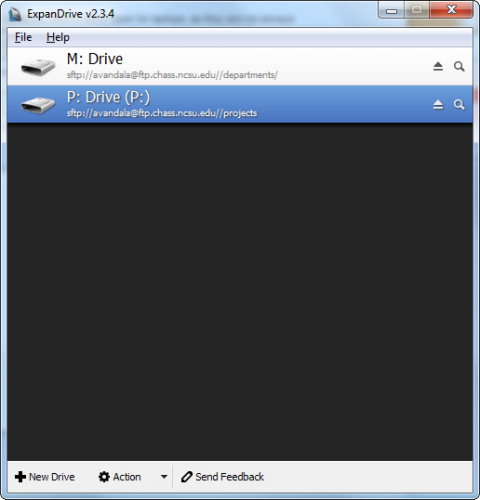
Fig. 16
The program will then establish a connection to the server. To sever the connection after it has been established, simply click on the Eject button to the right (Fig. 16).
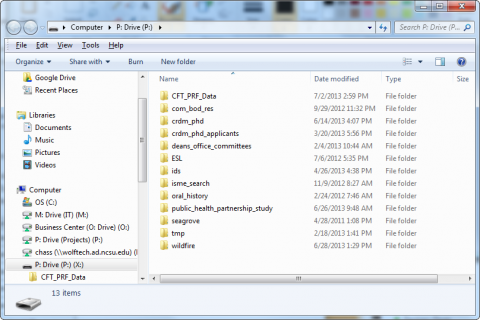
Fig. 17
Once the connection has been successfully established, an explorer window will appear, showing the contents of the P: drive (Fig. 17).